A truly successful WordPress stack comes down to balance. You need robust hosting, clean code, and plugins that are lightweight and built for a specific purpose. The strongest sites don’t use plugins as a crutch for weak infrastructure. Instead, they use them to extend WordPress in ways that boost search visibility, tighten security, improve performance, capture data, and keep everything running smoothly.
So, what plugins really matter? For most high-performing business sites, the essentials tend to cluster around a few key areas: SEO, security, front-end optimization, backups, and forms. When you have a solid plugin strategy, your team can control everything from how your content shows up in search, to how users log in, to how fast your pages load, how your data stays safe, and how leads get where they need to go.
This kind of strategy becomes even more important as your site grows, since every plugin you add can have ripple effects on your site’s architecture.
Why your plugin strategy dictates site architecture
People often call plugins “add-ons,” but that barely scratches the surface ofs the surfacanat they can do. A WordPress run PHP, tap into yourp into your database, add scripts to the schedule tasks, change how the admin works, and even alter how requests are handled. Used wisely, this flexibility is what makes WordPress so powerful. But if you let things get out of hand, plugins can quickly become the reason your site slows down, breaks, or becomes a headache to maintain.
That’s how plugin bloat sneaks in. You add one plugin for a feature, then another that overlaps, and before you know it, a third is loading scripts on every page when it’s only needed in one spot. Over time, your stack gets harder to troubleshoot and your site slows down.
If you’re running a high-traffic site, it’s smarter to let your hosting handle the heavy lifting. Things like caching, network security, redundancy, and traffic spikes. That way, your plugins can focus on what they do best: handling the specialized tasks that really belong inside WordPress.
Essential WordPress plugin categories for scalable sites
Every WordPress site is unique, but if you’re running a high-traffic or business-critical site, you’ll usually find yourself relying on a familiar set of plugin categories. These tools help you manage everything from visibility and security to speed, recovery, and conversions without bogging down your stack with features you don’t need.
1. SEO: controlling how you appear
An SEO plugin does a lot more than just let you add keywords to blog posts. On a mature WordPress site, its real job is to handle the technical structure; things like schema markup, XML sitemaps, canonical tags, robots directives, breadcrumbs, Open Graph data, and all the metadata that search engines use to understand and display your content.
This matters more than ever, since search isn’t just about a list of blue links anymore. Search engines, AI summaries, discovery feeds, and social platforms all rely on structured signals. With a solid SEO framework, your content shows up the way you want it to no matter where people find it.
For enterprise and growing teams, Yoast SEO and Rank Math are two widely used options. Both can help structure metadata, generate sitemaps, and manage schema without asking developers to hard-code every rule.
The trick is to keep it simple. Pick one SEO framework, set it up right, and resist the urge to pile on extra tools that might clash over titles, schema, or indexing rules.
2. Security: hardening the application layer
Security is never just about one plugin. If you’re using a premium managed host, you should already have things like firewalls, DDoS protection, malware monitoring, and secure server setups covered. But you still need to lock down the WordPress application layer itself.
That’s where a security plugin comes in. The best ones help you enforce two-factor authentication, require strong passwords, limit risky login attempts, track user activity, and alert your team when something important happens in the dashboard.
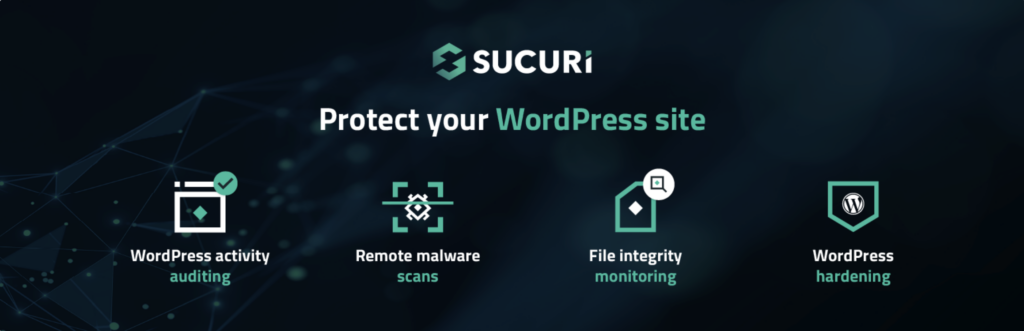
Plugins such as Sucuri and Wordfence can support those application-level needs. The right choice depends on the environment. Some teams want a focused login-hardening tool. Others want broader activity visibility, malware scanning, or firewall rules inside WordPress.
If you’re running an enterprise site, don’t expect a security plugin to be a magic shield. Think of it as just one layer in a bigger system, one that also includes least-privilege access, secure deployments, managed hosting, and a clear plan for how to respond if something goes wrong.
3. Performance & optimization: minimizing the payload
Performance plugins can be helpful, but they’re also easy to misuse. Full-page caching is almost always better handled by your server, edge, or CDN, especially if your site gets a lot of traffic and you need predictable cache rules. Plugins are best used for front-end optimization instead.
That means things like compressing images, lazy-loading media, minifying CSS and JavaScript, deferring non-critical scripts, optimizing fonts, and reducing anything unnecessary sent to the browser. In short, use plugins to make the visitor’s experience better.
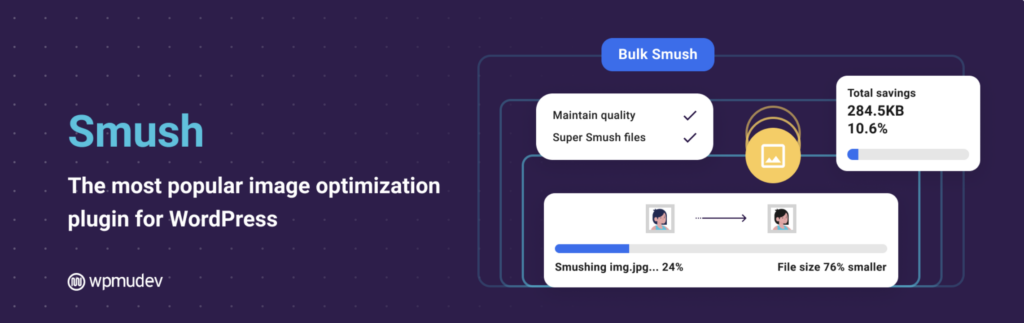
WP Rocket is a common choice for teams that want a broad optimization interface, though its caching features should be configured carefully when the host already provides server-level caching. Smush is often used for image compression, lazy loading, and modern image delivery.
Always test your optimizations in a staging environment first. It’s amazing how quickly a seemingly harmless minification setting can break a menu, checkout process, analytics event, or embedded form.
4. Disaster recovery: application-level backups
Your host should already be taking care of automated server-side backups. For instance, Pagely handles managed nightly backups of your site files and databases, with retention built right into the platform. That’s a huge part of disaster recovery, but there’s still a place for application-level backups.
The difference comes down to granularity and portability. A backup plugin lets you push copies to separate cloud storage, keep extra retention windows, or create an export before you roll out a risky update. If your organization has compliance requirements, that extra layer is often worth it.

Tools such as UpdraftPlus and Duplicator are commonly used for off-site backups and restore workflows. UpdraftPlus, for example, supports storage destinations such as Amazon S3 and Google Drive.
Don’t judge your backups by whether they run, judge them by whether they actually restore cleanly when you need them.
5. Form builders & data capture
Forms might seem simple, but they’re often tied directly to your bottom line. A broken lead form, a CRM sync that lags, or a missed notification can quietly cost you more than a slow homepage ever will. That’s why picking the right form builder is so important for a high-performance WordPress stack.
A solid form plugin should reliably route submissions, play nicely with your CRM and marketing tools, block spam, and avoid cluttering up your database. If you’re running enterprise workflows, your forms should move data to where your business actually needs it.
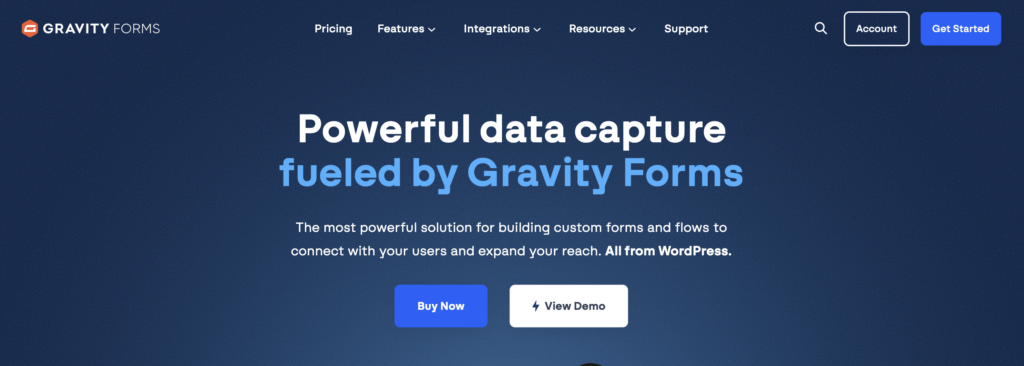
Gravity Forms and WPForms are two established options, especially when paired with CRM, email marketing, payment, or automation integrations.
It’s also worth looking at AJAX submissions, especially if your pages are cached. AJAX lets forms submit without a full page reload, which can make for a smoother user experience and help avoid conflicts with page caching. As always, test the entire process from submission and validation to notifications, CRM sync, and confirmation.
The vetting framework: how to evaluate a WordPress plugin
Picking a plugin should feel like approving any other new dependency for your site. Before you add anything to your live WordPress environment, make sure it meets a consistent set of standards.
- Update frequency: Look for plugins that are maintained regularly, not abandoned after major WordPress or PHP changes.
- PHP compatibility: Confirm compatibility with the PHP version used in your hosting environment, especially on enterprise stacks running newer versions.
- WordPress compatibility: Check whether the plugin supports the current major WordPress release and whether support threads show unresolved breakage.
- Database behavior: Review whether the plugin writes excessive autoloaded data to the
wp_optionstable or creates large custom tables without cleanup routines. - Front-end footprint: Inspect whether it loads CSS, JavaScript, fonts, or tracking scripts on pages where they are not needed.
- Developer reputation: Favor plugins from teams with a visible product history, clear ownership, and a track record of responsible updates.
- Support quality: Documentation, changelogs, support forums, and response patterns reveal a lot before anything is installed.
- Feature overlap: Avoid plugins that duplicate functionality already handled by your host, theme, custom code, or another active plugin.
- Exit strategy: Understand what happens if the plugin is removed. Shortcodes, custom blocks, database tables, and locked-in content models can create future migration problems.
The best plugins solve a specific problem, keep their footprint light, and make it easy for your team to keep the site running smoothly over time.
Safely deploying plugins in a production environment
If you’re running a serious WordPress site, you shouldn’t start by clicking “Add New” in production. That might work for a hobby project, but it’s not a good habit for a site that brings in revenue, serves a publisher, runs a university network, or powers a WooCommerce store with real customers.
Always start in a staging environment. Install the plugin, set it up, and test every workflow it touches. Check the front end while logged out, submit forms, run searches, test checkout, login, admin screens, scheduled tasks, anything that matters to your business.
Next, keep an eye on your logs. PHP warnings, fatal errors, slow queries, and odd cron jobs usually show up before your visitors notice anything is wrong. Performance testing can also reveal if a plugin adds queries or scripts that seem fine on one page but become a problem across thousands.
If you’re on an enterprise team, version control adds another layer of discipline. You can review, deploy, roll back, and document plugin changes right alongside your theme and application code.
Conducting regular plugin audits
A clean plugin stack doesn’t stay that way by accident. Sites evolve, teams change, campaigns come and go, and those “temporary” tools have a way of sticking around. Doing a plugin audit every quarter is a simple habit that keeps things from drifting over time.
Begin by looking at every active plugin. What does each one do? Who’s responsible for it? Do you still need it? Does it overlap with something else? Has it been updated lately? Is it slowing things down, causing security issues, or making editorial work harder?
Next, get rid of anything that’s no longer helping your site. Deactivated plugins should usually be deleted instead of left hanging around as potential vulnerabilities. If you can swap out three old plugins for one well-maintained one, consolidation is usually the smarter move.
The goal isn’t to run as few plugins as possible. It’s to run only the ones you really need, with each one earning its spot in your stack.
Build a bulletproof WordPress stack
The smartest WordPress plugin strategy is about fit, discipline, and knowing where each responsibility should live. Let your hosting handle the heavy lifting on the infrastructure. Use plugins for focused, application-level needs like SEO, login security, asset optimization, backups, and data capture.
A lean, well-chosen plugin stack is easier to scale, easier to secure, and much easier to recover if something ever goes sideways.
Now’s the perfect time to take stock of what’s installed, clear out anything redundant, and tighten up your stack. If you want your hosting to handle more of the heavy lifting for performance and reliability, Pagely’s enterprise WordPress hosting is designed to help you rely less on bulky, resource-hungry plugins so your WordPress site stays fast, resilient, and ready to grow.
FAQs
What are the most essential WordPress plugins?
The most essential WordPress plugins typically cover five core functions: SEO, security, performance optimization, backups, and forms. Together, these tools help improve search visibility, protect site data, optimize user experience, and support business growth.
How many WordPress plugins should a website have?
There is no ideal number of WordPress plugins. A website should use only the plugins it genuinely needs, regardless of the total count. Well-maintained, lightweight plugins that serve a clear purpose are generally preferable to multiple overlapping tools.
Do WordPress plugins affect website performance?
Yes. Every plugin adds code that can impact server resources, database queries, and page load times. High-performance websites minimize plugin bloat by choosing reputable plugins and relying on managed hosting for infrastructure-level functions like caching and security.
Which WordPress plugins are best for SEO?
Popular SEO plugins include Yoast SEO and Rank Math. These tools help manage schema markup, XML sitemaps, canonical tags, metadata, and other technical SEO elements that improve how search engines understand and display content.
How often should WordPress plugins be reviewed?
WordPress plugins should be audited at least once per quarter. Regular reviews help identify outdated, unused, or redundant plugins, reduce security risks, and ensure the site remains optimized for performance and scalability.