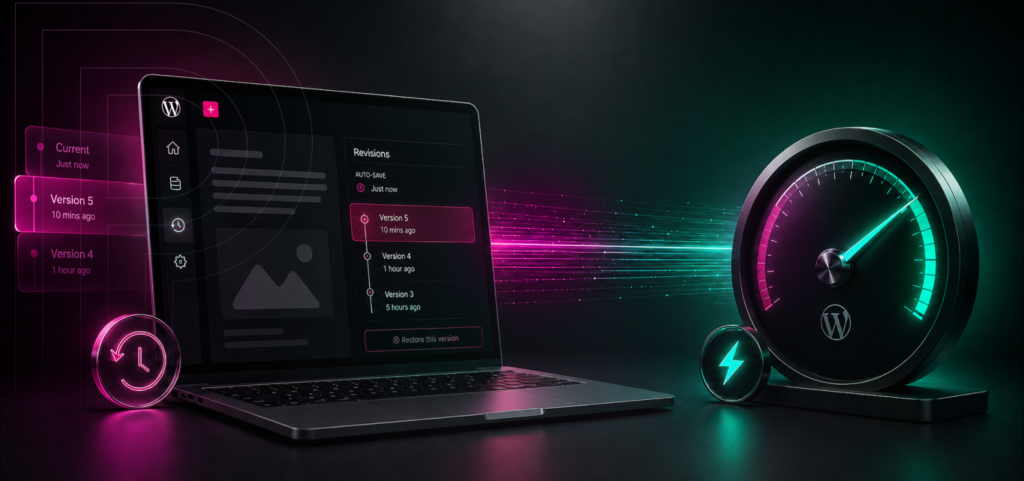
You’re updating a service page, swapping out a few paragraphs, and you hit Save.
Ten minutes later, someone spots that the original copy had an approved legal disclaimer. Suddenly, you need that earlier version back.
This is exactly the kind of slip-up WordPress revisions are designed to fix.
WordPress revisions quietly keep track of every saved change you make to posts and pages. Autosave steps in as a safety net while you’re still editing. Together, these features can save you hours of rewriting and stop a simple content mistake from turning into a bigger, customer-facing headache.
But there’s a catch. If your website has been around for years and sees lots of edits, those revision records can really pile up. Over time, all that extra database content might start to slow things down, especially if you’re running a busy publishing operation.
Let’s look at how WordPress revisions and autosaves actually work, how you can bring back lost content, and how to set a retention policy that makes sense for your team.
What Are WordPress Revisions?
A WordPress revision is a stored version of a post or page.
When revisions are turned on, WordPress quietly saves earlier versions every time you draft or update content. You can compare those versions side by side and bring back the one you need. WordPress even highlights what’s changed, so you can spot added or removed content at a glance.
Think of revisions as your website’s built-in version history.
They’re useful when:
- An editor removes the wrong section
- Approved copy gets replaced accidentally
- Several people edit the same page
- A formatting change causes an unexpected result
- A team needs to confirm who changed a piece of content
- An older product description or policy statement needs to be recovered
Ultimately, you lose less time to mistakes and your publishing process gets a whole lot safer.
Without revisions, finding an old draft can mean digging through emails, shared docs, backups, or even project management threads. With revisions, the version you need is often right there, attached to the page itself.
What Is WordPress Autosave?
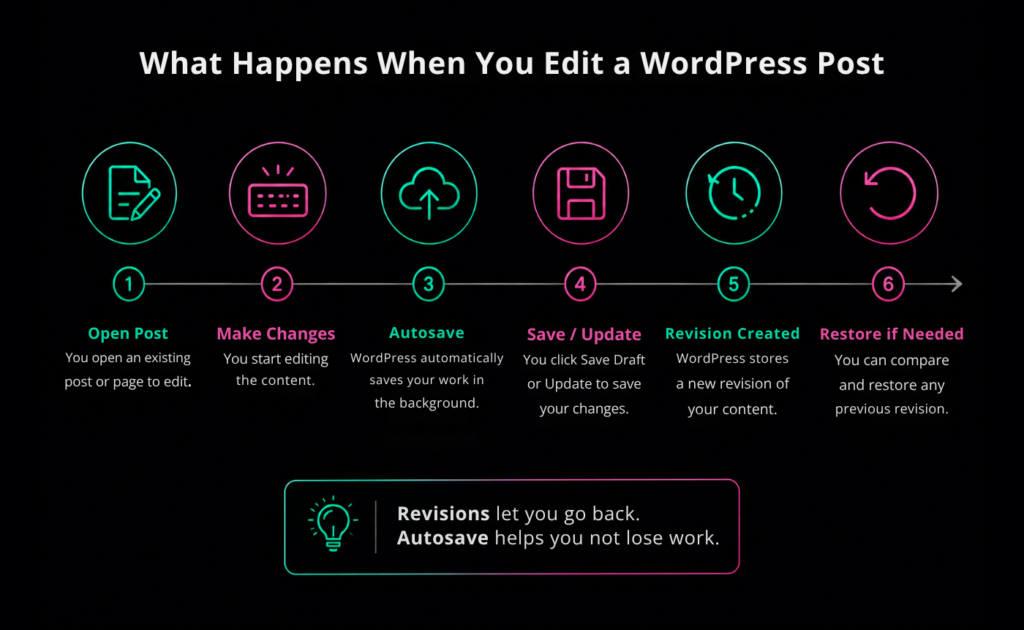
Autosave steps in to protect your work before you’ve had a chance to hit Save yourself.
As you’re editing, WordPress quietly saves your progress in the background. That way, if your browser crashes, your connection drops, your login times out, or you accidentally close the tab, you’re not starting from scratch.
Autosave and revisions work together, but they’re not the same thing.
A revision records a saved version of the content.
Autosave is like a temporary safety net while you’re still working on a page.
WordPress doesn’t keep every autosave forever. Instead, it just keeps the most recent one, replacing the old as you go.
Autosave isn’t a replacement for clicking Save; it helps you recover if something goes wrong. Writers and editors should still save drafts regularly, especially before making big changes.
Why WordPress Revisions Matter to a Business
Revisions might seem like a small editorial perk, but in reality, they support major business needs.
They reduce the cost of human error
Mistakes happen. Maybe a writer pastes over approved copy, or a marketer tweaks a landing page for a campaign and something important gets lost. Sometimes a manager only notices after the fact that a key qualification disappeared in the last update.
Restoring a revision is almost always faster than rebuilding a page from scratch. And the bigger your content team, the more those time savings add up.
They support editorial accountability
Revision history lets your team see exactly when content changed and who made the update.
That kind of record is especially helpful when multiple departments are juggling product pages, policy info, fundraising content, course descriptions, or news stories.
It’s not a full compliance audit, but it gives your team a lot more visibility than just overwriting and saving as you go.
They make collaboration safer
When you have multiple authors, things can get messy. One editor might update a page, not realizing another department already signed off on it.
Revision history gives you a safety net when workflows collide. Teams can move faster, without having to treat every content change like a full-blown development deployment.
They can protect revenue
If a call to action gets broken, a price explanation goes missing, or a product description is incomplete, your conversions can take a hit.
Being able to quickly restore the last approved version means a broken message doesn’t stay live for long. On high-traffic sites, even a short-lived mistake can cost real money.
How to View WordPress Revisions
Depending on your WordPress version, site setup, and post type, the interface might look a little different. But most of the time, you’ll find revisions right inside the post or page editor.
To look for them:
- Sign in to the WordPress dashboard.
- Open the post or page you want to review.
- Open the page or post settings panel.
- Find the Revisions option on the top-right and select the available revision count to open the comparison screen.
If you don’t see a Revisions option, there are a few possible reasons:
- The content has no saved revisions yet
- Revisions have been disabled
- Your user role does not have the required access
- The post type does not support revisions
- Your site uses a custom editorial interface
If you don’t see an option, revisions may be disabled, or the content may not have any saved revisions yet. Start by saving a draft or making an update, then check again. If you still don’t see the option, reach out to whoever manages your WordPress setup or hosting.
How to Compare WordPress Revisions
The revision screen lets you move between saved versions of the content.
WordPress highlights what’s changed so you can spot the differences right away. Depending on the revision, you might see deleted text, new additions, or both. If you’re using WordPress 7.0 or later, the revisions screen looks a bit different than in older versions, but the basics are the same.
Don’t rush this part.
Restoring an older version can bring back the text you need, but it might also wipe out newer, useful edits. Before you hit restore, double-check a few things:
- The revision date and time
- The author associated with the revision
- Headings and body copy
- Links
- Shortcodes or embedded elements
- Calls to action
- Any content added after that revision
If you’re working on a key sales or policy page, it’s often safer to just copy the paragraph you need from the old revision, rather than rolling back the whole page. That way, you keep everything else that’s already correct.
How to Restore a WordPress Revision
Once you find the correct version, use the revision screen’s restore control.
WordPress will replace the current editable content with the selected revision. The restored content can then be reviewed and saved.
Don’t skip that final review.
Treat a restoration just like any other content update. Always preview the page and make sure everything looks right before you call it done.
For a business page, review at least these elements:
- Page title
- Main heading
- Buttons and links
- Forms
- Images
- Pricing or product details
- Legal language
- Mobile layout
- Search metadata managed through your SEO tools
Restoring the right words is great, but if you leave a broken button behind, you haven’t really solved the problem.
For high-stakes pages, try out the restoration on a WordPress staging site first. Staging lets your team check everything over without showing unfinished changes to your visitors.
Are WordPress Revisions the Same as Backups?
No. Revisions and backups solve different problems.
A revision helps recover an earlier version of an individual piece of content.
A backup can help recover a broader part of the website, including files, database tables, themes, plugins, uploads, and settings, depending on how the backup was created.
Use revisions when:
- A paragraph was deleted
- A page needs to return to an earlier version
- You need to compare content changes
- An editor overwrote another editor’s work
Use a backup when:
- The website is unavailable
- A database problem affects multiple areas
- Files have been deleted or corrupted
- Malware or a failed deployment affects the site
- You need to restore more than one post or page
A solid recovery strategy uses both. Revisions keep your daily editorial work safe, while backups protect the whole site.
Can Too Many WordPress Revisions Affect Performance?
They can, especially if your site is large or gets edited a lot.
WordPress stores revisions in your database. If you’re running a small business site with only occasional updates, you might never notice a difference. But if you’re a publisher with thousands of posts, lots of authors, and constant edits, those revision records can really add up.
Over time, unrestricted revision retention may increase database size and make some maintenance tasks less efficient. Pagely disables revisions by default on its platform unless a customer requests them, and customers can set a preferred revision limit. This policy reflects the performance concerns that can appear at scale.
That doesn’t mean revisions are a problem. It just means your retention policy should fit your business needs.
If you’ve got a five-page company website, keeping more history might make sense. For a big publishing operation, it’s usually better to set a fixed number of revisions per post and back that up with a solid editorial workflow and reliable backups.
The real question is ultimately, “How many revisions does our team actually need to work safely?”
How Many WordPress Revisions Should You Keep?
There’s no magic number that works for every website.
A practical policy should account for:
- How often content changes
- How many people edit the site
- How valuable historical versions are
- How large the content library is
- Whether the site has a separate approval platform
- How quickly database growth matters at your scale
- What backup and recovery options are available
For most business sites, keeping a small, fixed number of recent revisions per post strikes a good balance. Your team gets a recovery window, but you’re not stuck with an endless archive.
A newsroom, university, or regulated organization may need a different policy. In those cases, the decision should involve editorial, technical, legal, and compliance stakeholders.
Don’t just guess at a retention limit. Take a look at how your team actually edits content before you decide.
How to Limit WordPress Revisions
WordPress revisions can be limited through the WP_POST_REVISIONS setting in the site’s wp-config.php file.
For example:
define( 'WP_POST_REVISIONS', 5 );This setting tells WordPress to keep only a set number of revisions for your content.
Changing wp-config.php affects how your site works, so only someone comfortable with WordPress configuration files should handle it. A typo in that file can take your site offline.
Before changing it:
- Confirm that the current site has a usable backup.
- Test the configuration in staging.
- Ask your host whether it manages revisions at the platform level.
- Document the chosen limit and the reason for it.
- Verify that new revisions appear as expected.
Pagely customers can refer to the Knowledge Base for platform-specific instructions or work with Support when changing revision behavior.
Should You Delete Old WordPress Revisions?
Maybe, but you should only delete old revisions after you’ve measured the impact, not just on a hunch.
Cleaning out old revisions might shrink your database, but running a heavy-handed cleanup without testing can cause bigger headaches than the original problem.
Before removing revisions, ask:
- Is the database actually causing a performance issue?
- How much space do revisions consume?
- Does the business need the historical content?
- Is there a verified backup?
- Has the cleanup process been tested in staging?
- Will the cleanup tool remove anything besides revisions?
It’s common for site owners to install a cleanup plugin just because the dashboard says the database could be “optimized.” That alone isn’t a good enough reason to start deleting content records.
Start by reviewing your database. Then, if you need to clean up, pick a controlled method and make sure you have a recovery plan in place.
A Simple Revision Policy for Content Teams
Technology always works better when your team knows exactly how to use it.
A basic WordPress revision policy might state:
- Save drafts before making large edits.
- Preview every restored revision.
- Use staging for high-value pages.
- Keep a fixed number of recent revisions.
- Do not use revisions as a replacement for backups.
- Ask a site administrator before running database cleanup tools.
- Record major content approvals outside WordPress when governance requires it.
A clear policy gives writers the freedom to work, while protecting your business from risky recovery decisions.
It also helps you avoid a common pitfall: one team thinks WordPress keeps every version forever, while another quietly disables revisions for performance, and nobody’s on the same page.
Use Revisions as Part of a Safer WordPress Workflow
WordPress revisions are simple, but their business value is real. They give your content team a quick way to recover from mistakes, compare edits, and bring back approved copy when it matters most.
Autosave protects your work in progress. Revisions keep saved versions handy. Backups cover the whole website. Staging gives you a safe space to test changes before they go live.
Each of these layers tackles a different kind of risk.
Start by checking if revisions are turned on for your site. Figure out how much history your team really needs. Set a retention limit that fits your workflow, write it down, and make sure your backup process covers anything revisions can’t recover. As your site grows, content recovery becomes a key part of your infrastructure planning. Pagely’s managed WordPress support can help your team align configuration, database performance, and recovery processes. Take a look at our WordPress hosting plans or reach out to us to talk through what your site needs.