
404 errors are a common problem for site owners, but they are usually easy to fix. If a visitor finds a broken blog post, Google discovers a missing product page, or a section of your WordPress site goes missing, the steps are similar:
- Find the broken URL.
- Figure out why it is missing.
- Restore it or redirect it to the right page.
In this post, we’ll explain what 404 errors are, what causes them in WordPress, how they affect your site, and the steps you can take to fix and prevent them.
What is a 404 Not Found error?
A 404 Not Found error is an HTTP status code that means the server is working, but the page you asked for is missing. In other words, the website is online, but that particular URL does not exist.
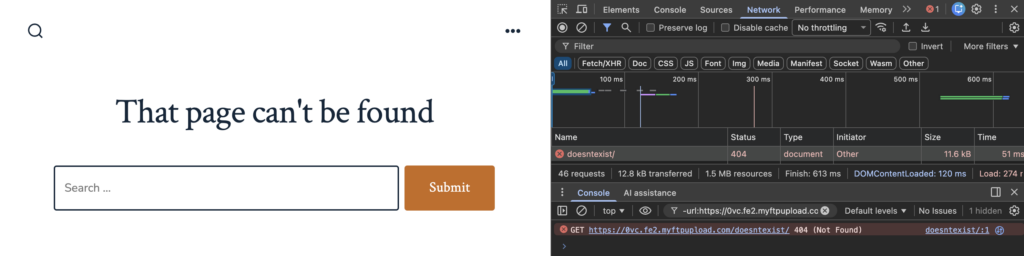
A “hard 404” happens when a page really does not exist and the server returns a 404 error as it should. A “soft 404” is when a missing or low-value page returns a normal 200 OK response, but search engines still treat it as missing.
Common causes of 404 errors in WordPress
404 errors are common on the web, but in WordPress they usually come from a few main causes. Most are due to permalink structure, routing rules, changed or deleted content, or simple URL mistakes that make WordPress unable to find the page.
Broken permalinks or routing issues
WordPress uses permalinks to turn easy-to-read URLs into the right posts, pages, archives, categories, tags, and custom post types. If these rewrite rules break, WordPress might work fine in the background, but visitors will see 404 errors on the site.
This often happens after you change your permalink structure, move your site, add a new custom post type, change taxonomy settings, or switch hosts. A URL that worked before may suddenly stop working because WordPress does not know how to route it anymore.
On Apache servers, this problem is often caused by a missing or broken .htaccess file. On NGINX servers, incorrect rewrite rules or server settings can cause the same issue. When routing is the problem, you might see 404 errors for entire content types, category archives, or all posts, even though the content is still in the WordPress admin.
Deleted, moved, or tenamed content
Editorial changes often cause 404 errors too. For example, a page might be unpublished if it is outdated. A blog post could be merged into a better article. A product, landing page, case study, or campaign page might be removed when it is no longer needed.
The issue is not the change itself. The real problem is leaving the old URL with no place to send visitors.
Changing a page slug can cause the same problem. For example, if you change /services/wordpress-support/ to /services/enterprise-wordpress-support/, you create a new URL. If the old one does not redirect, any links, bookmarks, or search results pointing to the original will show a 404 error.
Incorrect URLs and typos
Not all 404 errors mean your site is broken. Sometimes the URL is just incorrect.
A visitor might type the address and misspell something. Someone on your team could paste an incomplete link into an email. Another website might link to your content with a typo, an extra character, a missing slash, or the wrong slug.
These errors are easy to miss because the server is working as expected: it gets the request, looks for the page, and cannot find it. Still, it is important to watch for 404s caused by typos, especially if they come from high-traffic campaigns, partner sites, or valuable links.
How 404 errors impact your site
A few 404 errors are normal on any active website. The real problem is when important pages break, internal links lead to dead ends, or search engines keep finding missing URLs that should still work.
For users, a 404 breaks their flow. They click expecting an answer, a product, or a support page, but instead find a dead end. Some will search your site, but many will leave, especially if they came from a search result or referral link.
For SEO, the effect depends on how important and how many broken URLs there are. A missing page cannot rank in search. Links to dead pages stop passing value to your live content. On large sites, too many 404s can also waste crawl resources that could be used on important pages.
The good news is that 404 errors are not dangerous by themselves. They only become a problem if you ignore them or let them affect important parts of your site.
How to find 404 errors on your WordPress site
You cannot fix what you do not know about. A good 404 workflow starts with proactive monitoring, instead of waiting for customers, editors, or search engines to report broken pages. The best way is to use search data, server logs, and WordPress tools together.
Using Google Search Console
Google Search Console is a great free tool for finding 404 errors that Google has found on your site.
To check for 404s, open your verified site in Search Console and go to Indexing > Pages. In the Page indexing report, look for issues marked Not found (404) and Soft 404. These reports show URLs Google tried to crawl but could not index because they seemed missing or empty.
Next, review the examples. Focus on URLs that got traffic, have backlinks, are in important internal links, or should still exist. Export the list to a spreadsheet so you can group URLs by cause, such as deleted content, changed slugs, permalink issues, campaign errors, or invalid URLs.
You do not need to redirect every 404. The main goal is to decide which ones are important.
Server logs and WordPress tools
Search Console only shows what Google has found. Server access logs show what users, bots, apps, and referrers are requesting in real time.
For technical teams, logs are often the quickest way to find 404s before they hurt search visibility. You can filter requests by HTTP status code, spot repeated broken URLs, and see where the traffic comes from. This is especially helpful after migrations, launches, big content updates, or permalink changes.
Managed hosting dashboards, monitoring tools, and WordPress plugins can also help you find 404s. A plugin like Redirection can track missing URLs and help you set up redirects, but high-traffic sites should consider plugin performance and overhead.
Step-by-step: how to fix 404 errors
The right fix depends on the cause. A sitewide routing problem needs a different solution than a deleted page or a mistyped link. Start with the pattern you found, then use the most specific fix.
Flushing WordPress permalinks
If many valid WordPress URLs suddenly show 404 errors, try flushing permalinks first. This is quick, safe, and often fixes routing problems caused by old rewrite rules.
Here is how to do it:
- Log in to your WordPress admin dashboard.
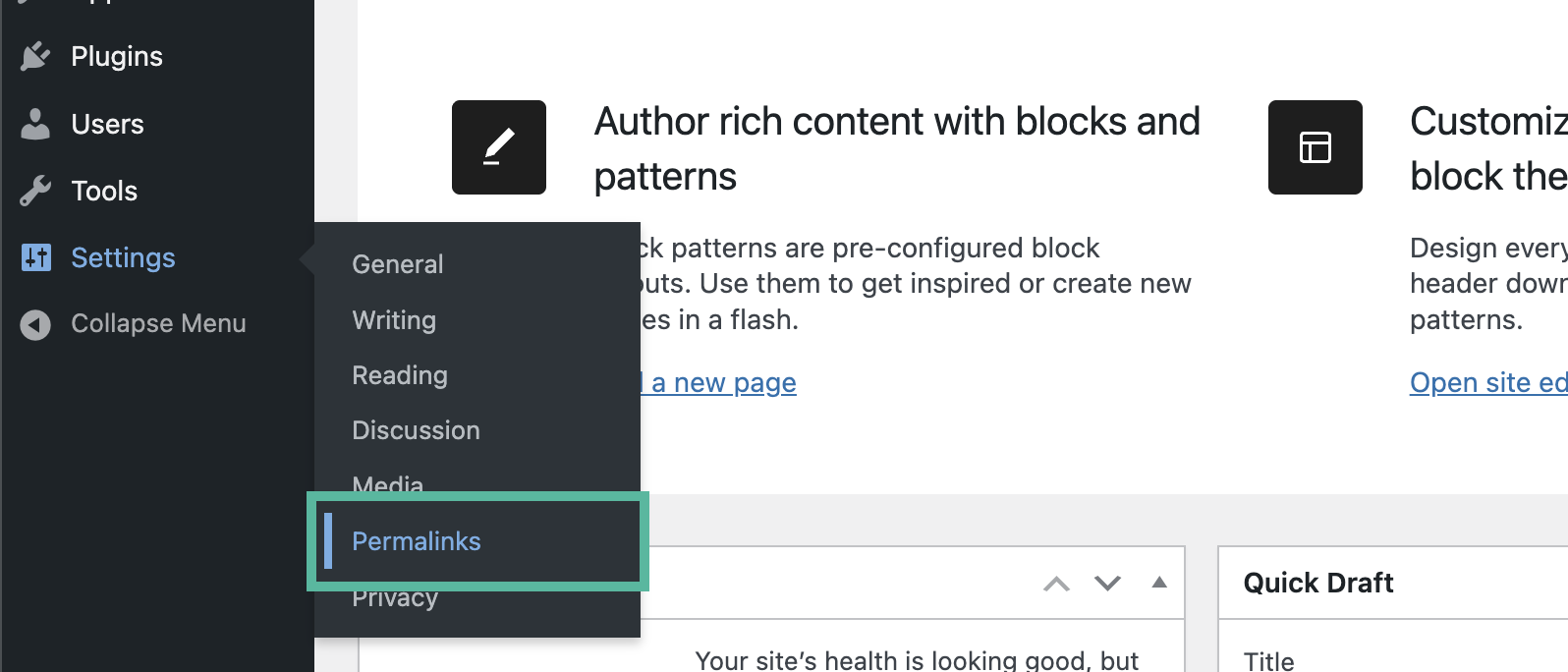
- Go to Settings > Permalinks.
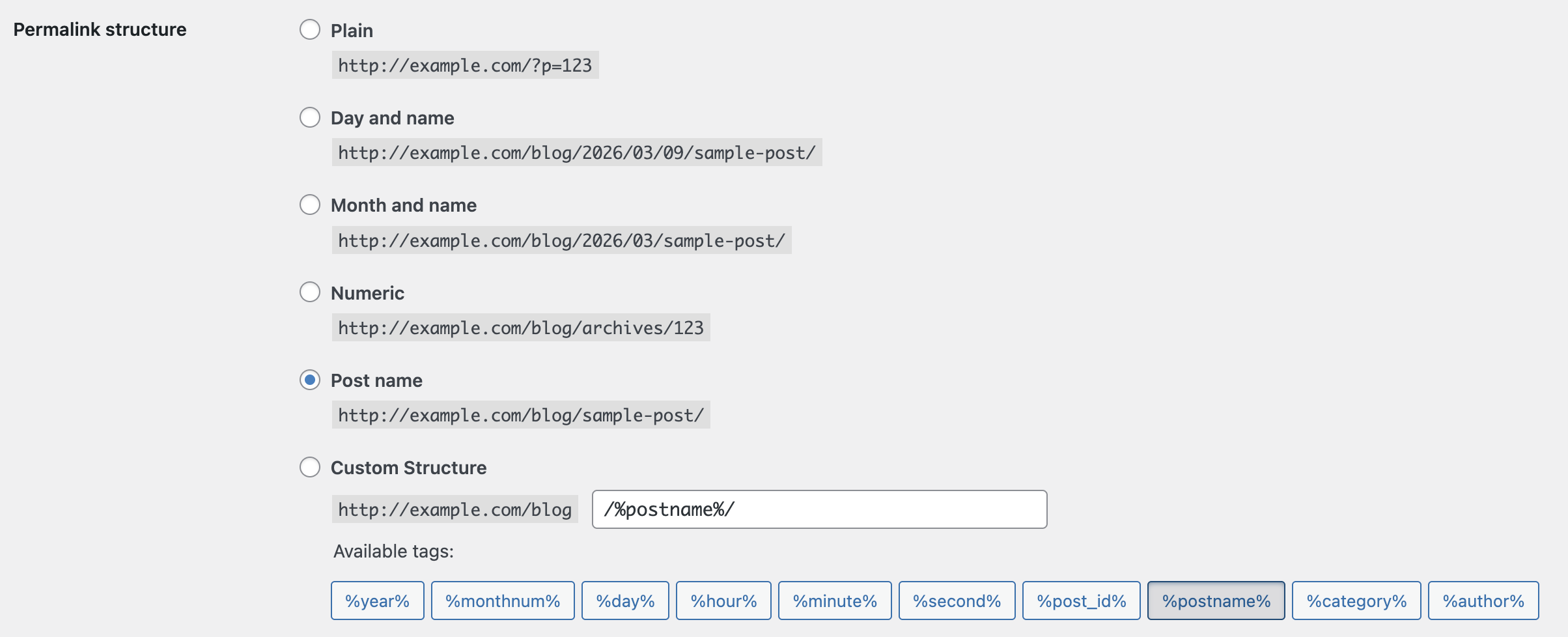
- Do not change the permalink structure unless you intentionally want to update your URLs.
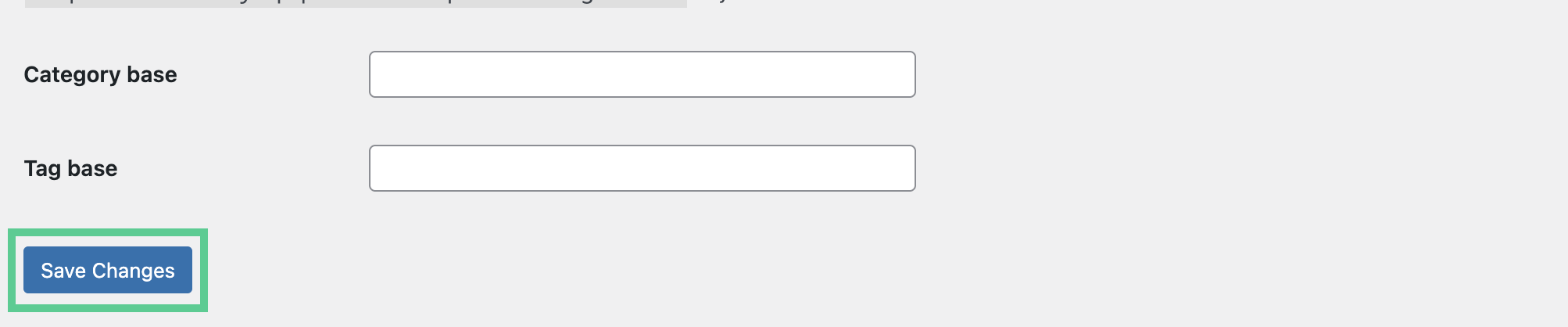
- Click Save Changes.
- Recheck the broken URLs in a private browser window or after clearing cache.
This step makes WordPress regenerate its rewrite rules. In many cases, this reconnects the public URLs with the right posts, pages, archives, and custom post types.
If the problem continues, check your server settings. On Apache, make sure the .htaccess file exists, is writable, and has the right WordPress rules. On NGINX, review the rewrite settings with your hosting provider or technical team.
Setting up 301 redirects
If content has moved for good, the best fix is usually a 301 redirect. A 301 tells browsers and search engines that the old URL now points to a new one.
The most important rule is to keep redirects relevant. Do not send every broken URL to your homepage. Instead, match each dead URL to the closest useful live page. For example, a deleted product page could redirect to the current version, a parent category, or a comparison page. An old blog post might redirect to an updated guide on the same topic.
For better performance and reliability, server-level redirects are often best for large WordPress sites. Redirects set up through NGINX, Apache, a CDN, or a managed hosting dashboard are usually faster and easier to manage at scale.
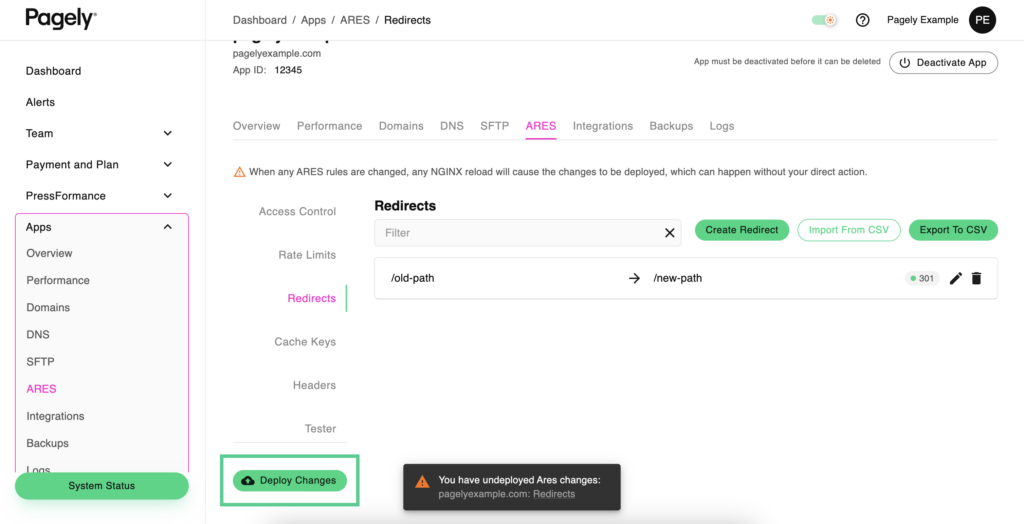
WordPress redirect plugins are still helpful, especially for editorial teams who want an easy interface. They are good for small sets of redirects, campaign cleanup, and quick fixes. For large sites, keep a clear redirect map so rules do not conflict, chain, or point to pages that might be removed later.
Restoring content or fixing slugs
Sometimes the easiest fix is the best one.
If you deleted a page by mistake, go to Pages or Posts in WordPress and check the Trash. If the content is there, restore it and test the original URL.
If the page still exists but the slug changed by accident, open the editor and check the URL slug. Changing it back to the original can quickly fix the 404, especially if links and search results still use the old address.
This is often the quickest fix for recently edited content, campaign pages, author bios, documentation, and high-traffic posts where the original URL should not have changed.
How to prevent future 404 errors
The best way to handle 404 errors is to prevent them. Set up a clear process for URL changes so editors, marketers, developers, and SEO teams know what to do before changing a slug or unpublishing a page.
Avoid using date-based permalink structures unless dates are important for your content. Dates can make updates harder and may lead to unnecessary URL changes later. When you can, pick stable, descriptive URLs that will last as your content grows.
Use tools that automatically create redirects when a post slug changes, but do not rely only on automation. For big migrations, redesigns, taxonomy changes, or content cleanups, make a redirect plan before launch and check it afterward.
Stay ahead of 404 errors in WordPress
404 errors are bound to happen as your WordPress site grows, but they do not have to hurt your site’s performance, search rankings, or user trust. With regular monitoring, good permalink management, relevant redirects, and strong editorial processes, your site can stay fast, easy to crawl, and simple to navigate.
For enterprise teams, hosting is important too. Our managed hosting for WordPress gives technical teams a strong, performance-focused base for running complex WordPress sites at scale.