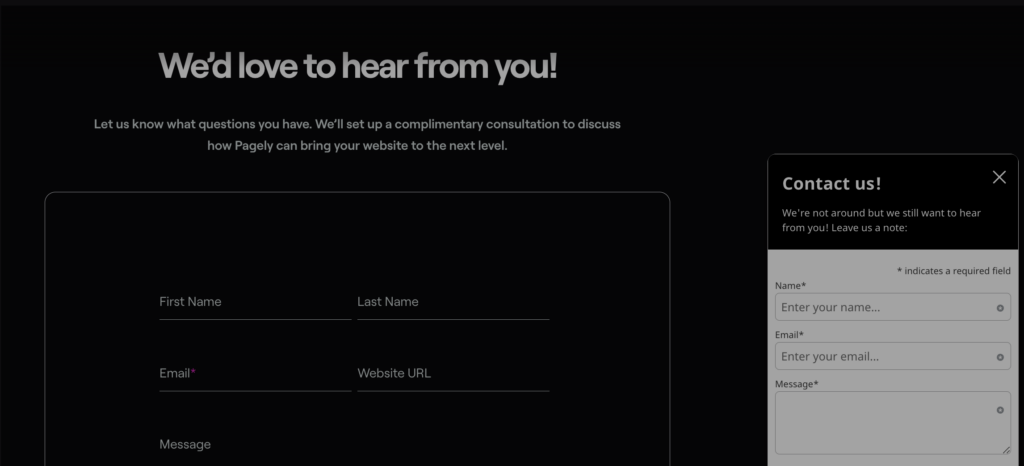
A form that loads slowly or asks for more information than necessary can cost you responses. Forms are more than just a way to collect data. When configured well, they can support conversions, engagement, and business growth.
Whether you’re running a business website, a membership site, or an eCommerce store, having well-designed and optimized forms can significantly improve conversion rates and user experience. This guide will walk you through everything you need to know about WordPress forms, from choosing the right plugin to optimizing for performance, security, and user engagement.
Why Do You Need Forms?
Forms serve multiple purposes, depending on your website’s goals. Some common use cases include:
- Lead Generation – Capture emails and grow your subscriber list.
- Customer Support – Allow visitors to submit queries or requests.
- E-Commerce Transactions – Process orders, payments, and product inquiries.
- Surveys & Polls – Collect valuable customer feedback.
- Membership & Login Forms – Facilitate user registrations and access control.
- File Upload & Submissions – Accept documents, images, or applications.
💡 Pagely Tip: Well-optimized forms improve the user experience and can reduce abandonment rates. Learn how to optimize site speed to keep forms loading fast.
Choosing the Right WordPress Form Plugin
WordPress offers a variety of form plugins to suit different needs. Well-known options include:
- WPForms – User-friendly, drag-and-drop builder with pre-built templates.
- Gravity Forms – Advanced features for complex forms and automation.
- Ninja Forms – Great for beginners, with an intuitive interface.
- Formidable Forms – Ideal for data-driven applications and reports.
- Fluent Forms – Fast, lightweight, and optimized for performance.
Compare the features that matter for your specific form, including accessibility, spam protection, payment support, data storage, integrations, and the pugin’s update history. Test the final choice with your theme and other plugins before using it on a live site.
If you’re running a high-traffic site, confirm that form scripts load only where needed and test how the plugin behaves under realistic traffic. Caching can accelerate static assets, but form submission endpoints generally need to remain uncached. Learn how Pagely optimizes WordPress hosting.
How to Create a Form in WordPress
Step 1: Install and Activate a Form Plugin
- Navigate to Plugins > Add New in your WordPress dashboard.
- Search for a form plugin (e.g., WPForms or Gravity Forms).
- Click Install Now, then Activate the plugin.
Note: The steps that follow will assume the use of the WPForms plugin.
Step 2: Create a New Form
- Go to WPForms > Add New (or the equivalent menu for your plugin).
- Choose a template or start from scratch.
- Use the drag-and-drop builder to add fields like name, email, dropdowns, checkboxes, or file uploads.
- Configure conditional logic (e.g., show extra fields based on user selections).
Step 3: Customize Form Settings
- Set up and test email notifications so the right recipients receive each submission.
- Configure layered spam protection, such as honeypot and CAPTCHA, to reduce automated submissions.
- Redirect users to a custom thank-you page after form submission.
- Review consent, data retention, and notification settings based on the information your form collects.
Step 4: Embed Your Form
- Add the form to a page or post using shortcodes or blocks.
- Insert forms in sidebars and footers using widgets.
- Use popups and modal windows sparingly. They can increase visibility, but they may also interrupt visitors or create accessibility problems.
Securing Your WordPress Forms
Since forms collect user data, security should be a top priority. Follow these best practices:
- Enable CAPTCHA & Honeypot Fields – Use layered controls to reduce automated spam rather than relying on one method.
- Use HTTPS – Encrypt data while it travels between the visitor’s browser and your web server.
- Limit Login & Registration Attempts – Apply rate limits or similar controls to forms that authenticate or create users.
- Regularly Update Plugins – Keep your form plugins updated to patch security vulnerabilities.
- Restrict File Uploads – Allow only required file types and sizes, and scan uploads when possible.
- Use Web Application Firewall (WAF) – Filter malicious requests before they reach WordPress.
Pagely’s managed security controls help filter malicious requests before they reach your site. You should still configure the spam, authentication, and upload protections provided by your form plugin. Read more about our secure WordPress hosting.
Optimizing Forms for Conversions
Forms should be designed with usability and conversion optimization in mind. Here’s how:
- Keep Forms Short – Only ask for necessary information to reduce friction.
- Use Multi-Step Forms – Breaking a long form into logical steps may make it easier to complete, but test it with your audience.
- Enable Auto-Fill & Validation – Use appropriate autocomplete settings, clear labels, and specific inline error messages.
- Optimize for Mobile – Ensure forms are responsive and easy to complete on all devices.
- A/B Test Form Variations – Experiment with different form lengths, layouts, and CTAs.
Integrating Forms with Other Tools
To maximize form functionality, integrate them with other tools and services:
- Email Marketing Platforms – Sync with Mailchimp, ConvertKit, ActiveCampaign for automated follow-ups.
- CRM Systems – Send leads to HubSpot, Salesforce, or Zoho CRM.
- Payment Gateways – Enable payments via PayPal, Stripe, or Authorize.net.
- Zapier Automations – Automate workflows and connect forms with supported apps.
Review which submission fields each integration receives, who can access that data, and what happens if the external service is unavailable. Send only the information the destination needs.
For high-traffic forms, test the complete submission path, including email delivery and external integrations. A slow third-party service can delay or interrupt a submission even when the WordPress site itself is performing well.
Final Thoughts
Forms play a crucial role in user engagement, lead generation, and conversions on WordPress websites. Choosing the right plugin, optimizing for speed, and ensuring security will enhance the effectiveness and reliability of your forms.
Reliable hosting provides the performance and security foundation your forms depend on. Learn more about Pagely’s managed hosting for WordPress or contact our team to discuss your site’s requirements.