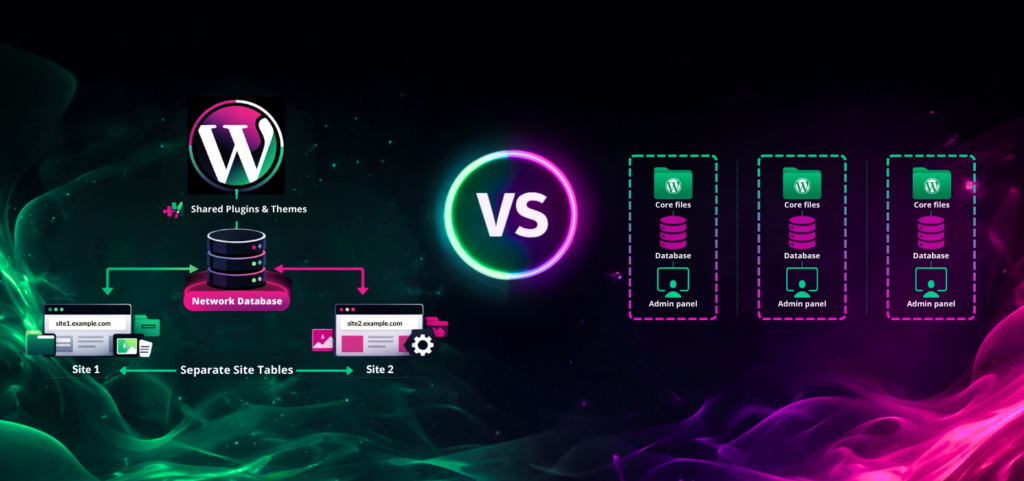
Choosing between WordPress Multisite and separate installations isn’t always straightforward. Both options can work, but the right answer depends more on how similar your sites are than how many you have. If your sites share branding, workflows, and features, Multisite is often the smoother path. If your sites have different audiences, risks, or business goals, separate installs tend to make more sense.
Looking for a quick answer?
Choose WordPress Multisite when you’re running a network of closely related sites that should share plugins, themes, users, and centralized governance. Choose separate WordPress installations when each site is a distinct business asset with its own performance profile, security boundary, compliance needs, or development roadmap.
That’s the practical answer most teams are looking for. Multisite is all about efficiency: you get one codebase, one admin area, and one spot to handle updates for all your sites. Separate installs are about independence. Each site can run on its own schedule, use its own tools, and stay isolated if something breaks. Let’s take a closer look at what WordPress Multisite actually is, and when it makes sense to use it.
What is WordPress Multisite?
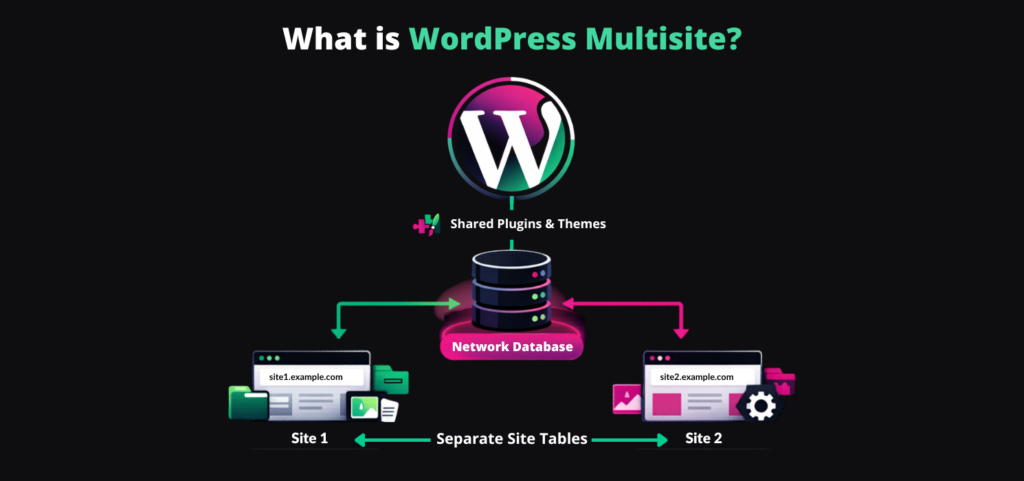
WordPress Multisite lets you run several websites from a single WordPress installation. Instead of juggling separate WordPress copies for every site, you manage one set of core files and, usually, one database. The network shares some tables, but each site still gets its own content tables.
In practice, this means all your sites share the same WordPress core, themes, and plugins. Each site still has its own content, media, menus, and settings, but everything lives inside one bigger network. WordPress keeps things organized by giving each site its own set of tables, while some data is shared across the network.
Multisite also adds a Super Admin role. The Super Admin manages the whole network, not just one site. This person can create new sites, install themes and plugins, set network-wide settings, and decide who gets admin access on each site.
You can run Multisite on subdomains, subdirectories, or even custom domains. The main idea is simple: many sites, one shared WordPress setup.
Key benefits of a WordPress Multisite network
- Centralized administration: Multisite gives your team a single control plane for a network of sites. Instead of logging into ten or fifty different WordPress dashboards, you can manage the larger environment from one network admin area.
- Unified updates: Core updates happen once for the entire network, and installed plugins and themes are maintained in one place. That can dramatically reduce maintenance overhead for teams responsible for many similar sites.
- Shared design and functionality: If every site should use the same approved theme stack, plugin set, and editorial framework, Multisite enforces consistency without constant duplication of work.
- Built-in shared user management: Users can exist at the network level and be granted roles on one or many sites. For organizations with overlapping teams, that is much cleaner than recreating accounts across separate installs.
- Faster site launches: New sites can be provisioned quickly from an existing, governed environment. That makes Multisite especially efficient for repeatable site patterns such as department sites, regional microsites, or franchise location pages.
When your sites are a good fit, Multisite makes management easier and helps keep everything consistent across the board.
Understanding separate WordPress installations
A separate WordPress installation is the classic way to run a single site. Each website is its own WordPress instance, with its own admin area, database, and files. Every site stands alone, both technically and operationally.
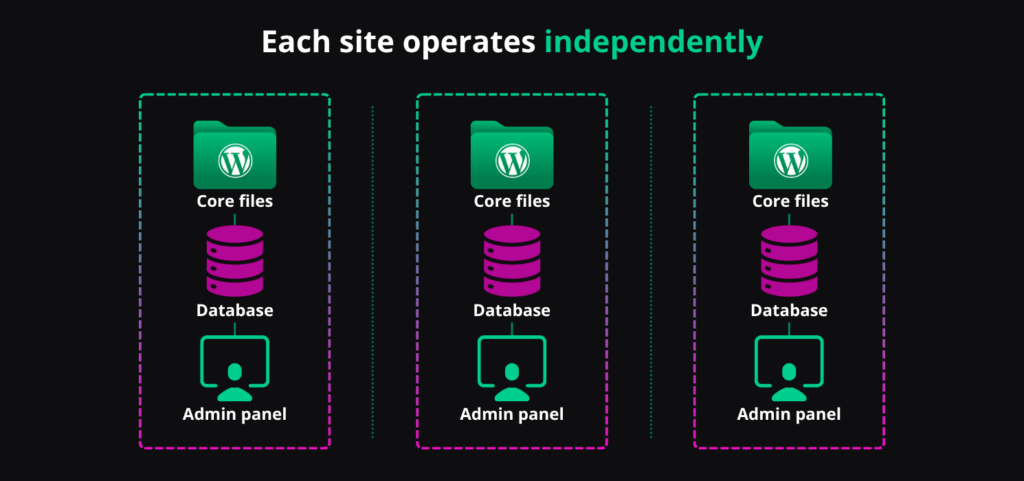
That independence is important. One site can use a totally different theme, plugins, release schedule, or even hosting setup. You’re not locked into a shared network or forced to match what other sites need. If one site needs heavy performance tuning and another is just a simple marketing page, you can set up each one exactly as needed.
Separate installs also make it easier to draw clear lines around who owns what. Each brand, client, or team can manage its own site without having to follow network-wide rules. There’s no Super Admin over everything. Each site has its own admins, workflows, and way of working.
Put simply, separate installs give up some efficiency for more autonomy. You’ll spend more time on maintenance, but you get clearer separation between sites. If your sites have different needs or risks, that tradeoff is usually worth it.
Advantages of standalone sites
The main benefit of standalone WordPress sites is isolation. If something goes wrong, like a plugin update breaks a site or an admin account gets compromised, the problem usually stays with that one site. This is even more true if each site is on its own hosting account or container.
Standalone sites also give you more control over resources. You can set up each site’s PHP workers, caching, database, CDN, and scaling however you want, without worrying about how it affects other sites. That’s hard to do in a shared network where everything runs on the same WordPress install.
Flexibility is another big plus. With separate installs, teams can use whatever plugins they need without worrying about conflicts or network rules. One site can have a complex editorial setup, another can run WooCommerce, and another can stay lightweight with just the basics. You’re not forced to use the same setup everywhere.
This setup is also better for independent release cycles. A marketing team can redesign one site, an engineering team can launch custom code on another, and a compliance team can lock down a third, all without every change needing network-wide approval.
If you’re managing very different sites, standalone installs might take more work to maintain, but they’re usually safer in the long run.
A technical comparison of WordPress Multisite vs. separate installs
Performance and managed hosting requirements
Multisite can be fast, but it puts more pressure on your hosting setup. Since all your sites share the same WordPress foundation, a traffic spike on one site can use up resources like CPU, memory, or database connections for the whole network. If one site gets busy, it can slow down the others.
That’s why Multisite works best when your hosting is set up for it. You might need to separate caches so one site’s data doesn’t mix with another’s. If you’re using different domains, you’ll also need more advanced DNS and routing. Things get even trickier if you have logged-in users, ecommerce, or lots of editors working at once.
For teams considering Multisite at scale, the following hosting features and specs are usually recommended:
- High-performance CPUs and at least 8-16 GB RAM (more for large networks or high-traffic sites)
- Support for multiple PHP workers to handle heavy simultaneous traffic
- Fast SSD storage, optimized for high I/O
- Database servers that can scale and handle increased queries from all sites in the network
- Robust object caching (such as Redis or Memcached) and separate full-page caches per site
- Advanced DNS/routing options to support many mapped domains
- Strong security features including web application firewalls, daily backups, and network monitoring
- Easy staging environments to safely test plugin or core updates across the network
Scalable managed WordPress hosting platforms often include these features out of the box, but it’s important to review your provider’s support for large Multisite environments before going live.
Separate installs are usually easier to spread out. You can put a busy store on one server, a brochure site on another, and an internal portal somewhere else. Each site can be tuned and scaled on its own, without affecting the others.
So the real question isn’t if Multisite can be fast. The question is whether your hosting can keep the rest of your sites safe when one gets a traffic spike.
Security and vulnerability management
From a security perspective, Multisite introduces a classic tradeoff: centralized control also creates a larger blast radius. A vulnerability in a network-activated plugin, a compromised theme, or a compromised Super Admin account can affect every site in the network. The convenience of a shared stack becomes a single point of failure.
That doesn’t mean Multisite is insecure by default. It just means you need to be extra careful with updates, access, code reviews, and hosting security, since one weak spot can affect everything. Backups and restores also get trickier, in that you might need to recover just one site without taking down the whole network.
Separate installs act more like sandboxes. If one site gets compromised, the others are usually safe, especially if they’re on different accounts or servers. The risk isn’t zero, but it’s easier to see where the boundaries are, and fixing problems is usually simpler.
If you have strict compliance needs, separate client environments, or just want to avoid any risk of sites affecting each other, separate installs are usually the safer choice.
When to choose WordPress Multisite
Multisite is the right call when your sites are variations of the same platform rather than fully independent properties. A university is a classic example. Faculty blogs, department sites, program pages, and student publication sites often need shared branding, shared plugins, and centralized governance while still allowing local editors to manage their own content.
The same logic applies to enterprise intranets and internal knowledge hubs. Different teams may need their own sub-sites, but the organization still wants one approved theme stack, one authentication model, and one team governing updates and permissions.
Franchise and multi-location businesses are another strong fit. If every location site uses the same templates, same features, same content modules, and only small local variations, Multisite can dramatically reduce maintenance. Launching new locations becomes far easier because you are cloning a proven pattern, not building a new platform every time.
Regional marketing networks and brand-controlled microsites also work well with Multisite. The key is that the sites are similar. If they share branding, structure, features, and oversight, Multisite makes it much easier to keep everything consistent and efficient.
Go with Multisite when you want a managed network of related sites, not a bunch of separate websites.
When to stick with separate installations
Separate installations make more sense when the sites may belong to the same company on paper but behave like different products in practice. A holding company with a portfolio of unrelated brands is a perfect example. One site may be a publishing property, another a lead generation machine, and another a transaction-heavy ecommerce business. They should not be forced into the same architecture.
Agencies building sites for distinct clients should also be cautious with Multisite. Even if the sites look similar at first, each client usually has different plugin needs, different access expectations, different release schedules, and different risk tolerance. Shared infrastructure can create unnecessary governance headaches and uncomfortable security tradeoffs.
Ecommerce is another common dividing line. Two stores may both run WordPress, but one may need advanced search, custom checkout logic, regional tax rules, or specialized database tuning. Those requirements can diverge quickly, and they rarely belong in a shared network unless the stores are highly standardized.
Separate installs are also better if your sites have different compliance rules, uptime needs, or recovery plans. If each site needs its own technical approach, it’s best to treat them as separate from the beginning.
FAQ
Here are some of the most common questions teams ask once they start weighing the real-world tradeoffs.
Can you migrate from separate installations to WordPress Multisite?
Yes, but it usually requires planning, staging, and careful handling of domains, media paths, user accounts, and plugin behavior. Content can be consolidated into a Multisite network, but themes, custom code, and integrations should be tested site by site before launch.
At a high level, a typical migration involves:
- Auditing existing sites for plugin, theme, and user overlap
- Setting up a staging Multisite network and migrating one site as a test case
- Planning domain mapping and updating DNS settings to match the new Multisite setup
- Carefully migrating media libraries to prevent path or link errors
- Migrating user accounts and assigning correct permissions per site
- Testing each site’s functionality, integrations, and workflows in the network context
- Scheduling a final switchover or DNS cutover, then monitoring post-migration issues
Common migration pitfalls include broken plugin or theme functionality (especially if not Multisite-compatible), media file mismatches, user permission errors, and lingering SEO or URL issues from changes in site structure. Documenting assumptions, running pilot migrations, and backing up all instances before each step can help reduce risk.
Do all plugins work on WordPress Multisite?
No. Many plugins work well on Multisite, but not all are network-aware or designed for shared environments. Some licensing models, media tools, backup utilities, and caching plugins behave differently in a network, so compatibility testing is essential before rolling them out broadly.
Is WordPress Multisite cheaper to host?
Sometimes, but not automatically. Multisite can reduce administrative overhead because updates and maintenance are centralized. However, a busy network may need stronger infrastructure, more careful caching, and tighter operational controls than a handful of separate low-traffic sites, so total cost depends on complexity and risk tolerance.
Making the right architectural choice
In the end, it’s a choice between shared efficiency and independent control. Multisite cuts down on duplicate work, but it also means more shared risk and infrastructure needs. Separate installs take more effort to maintain, but make it easier to isolate problems, fine-tune performance, and support sites with very different needs.
Still not sure which way to go? Use this quick decision checklist:
- Do your sites need to share the same branding and design?
- Will most plugins and features be the same across all sites?
- Should user accounts and permissions be managed centrally?
- Will you benefit from updating everything in one place?
If you answered yes to most of these, WordPress Multisite could fit well.
- Do your sites have different target audiences or business units?
- Are there unique compliance, security, or uptime needs for each site?
- Do you expect each site to have its own design, plugin stack, or release cycle?
- Would isolating risk between sites be important for your organization?
If you answered yes here, standalone installations may be the smarter choice.
There’s no one-size-fits-all answer here. Multisite is best when your sites are closely related and you want centralized control and efficiency. Separate installs are better when you need flexibility, security isolation, custom performance, or independent release cycles.
If your sites follow the same patterns and serve the same organization, Multisite can be a smart, cost-effective option. If your sites differ in brand, traffic, compliance, or technical needs, standalone installs are usually safer for the long haul.
Before you decide, take a close look at your current setup. Check for plugin overlap, where your traffic is concentrated, how your admin workflows run, and what your recovery needs are. Think about where you’re comfortable sharing risk. If you’re not sure what your hosting can handle, consider reaching out or exploring managed our managed WordPress hosting options.